How to Create Nursery Rhymes Videos Using AI
In the world of AI-powered content creation, making enchanting nursery rhymes videos is a breeze, perfect for parents, educators, or YouTube creators aiming to delight young viewers. This step-by-step guide draws from hands-on tutorials to walk you through the exact process using CloneVoice AI for audio (lyrics and MP3), Artistly AI for image generation from that audio, and VideoExpress AI for animation and final video assembly.
These one-time purchase tools eliminate subscriptions and credit limits, letting you focus on creativity.The workflow assumes you’ve watched setup tutorials for API integrations (more on that below). We’ll cover generating an AI-created rhyme like a bouncy spring adventure. By the end, you’ll have a vibrant, synced video ready to share. Let’s get started!
Step 1: Set Up API Integrations for Seamless Workflow
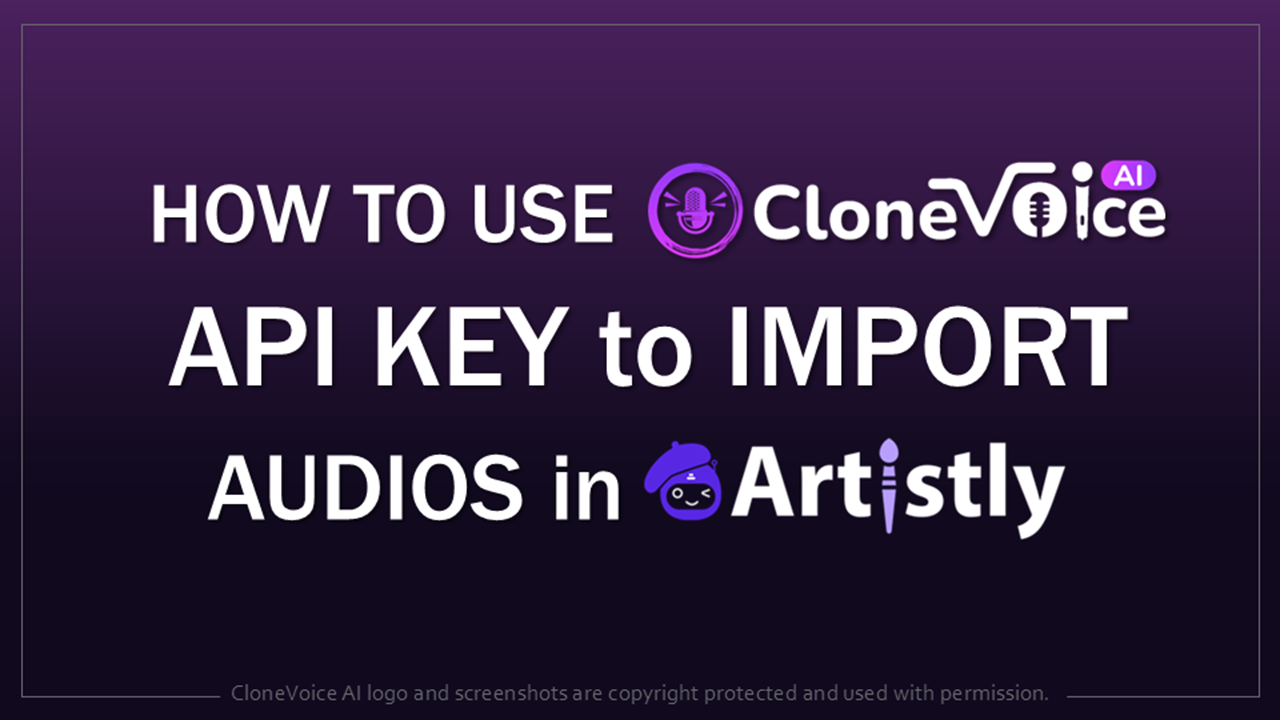
Before you get started with creating the nursery rhymes audio, images, and video, you need to set up the API integration between CloneVoice, Artistly, and VideoExpress. This API integration helps with a smoother workflow.
Essentially, once you generate the MP3 audio in CloneVoice, you will be able to create the nursery rhymes images in Artistly. The next step would involve importing the images from Artistly into VideoExpress to animate the images and create the nursery rhymes video I’ve created step-by-step video tutorials to walk you through setting up the API integration for each of these AI apps.
Step 2: Generate Lyrics and MP3 Audio in CloneVoice AI
CloneVoice AI shines at turning text into lifelike audio, making it perfect for narrating nursery rhymes with a warm, child-friendly voice. The process of creating the nursery rhymes MP3 audio is very simple.
Once you log into your CloneVoice AI account, follow these steps: (1) Go to the Create Music section; (2) choose the Genre as “Kids Rhymes”; (3) enter a brief description of what you want the nursery rhymes; (4) agree to the terms of service; (5) and click on “Create Lyrics”.
Once you complete the above steps, CloneVoice will generate a detailed lyrics preview with intro, verses, and chorus. You can choose to update any of these sections. Once you’ve reviewed the lyrics and are happy with the output, you can agree to the terms of service and click on “Generate Music”.
You will then be redirected to the My Audio section where you will find the nursery rhymes audio generated. It can take a few minutes to complete. You will then see options to preview the audio and download the MP3 file to your computer.
Step 3: Create Images with Artistly AI Using Your MP3
Once you create the nursery rhymes MP3 audio file in CloneVoice AI, you need to generate the images for each of the scenes. This can be accomplished by using the MP3 file what was generated and using Artistly to create the images.
To do so, you will need to follow these steps: (1) log into your Artistly account; (2) go to the Fast AI Image Designer; (3) go to AI Design Assistants; (4) choose Nursery Rhymes; (5) drag & drop your MP3 file; (6) choose the aspect ratio for the images; (7) and finally, click “Generate Images”.
You will then be redirected to the Personal Designs section where you’ll find all the images generated in Artistly. You can watch this video tutorial below to learn how to create the nursery rhymes audio in CloneVoice AI and generate the images in Artistly.
Step 4: Import Images from Artistly to VideoExpress AI
The next step in creating the nursery rhymes video is to import the images from Artistly to VideoExpress. To do so, follow these steps: (1) log into your VideoExpress account; (2) click on Import Media; (3) choose Import from Artistly; (4) individually select the images; (5) and click on Import. Once you do so, the images will appear in your Media Library under the “My Artistly AI Images” folder.
Step 5: Animate Each Image in VideoExpress AI
Now that we’ve imported the images from CloneVoice to Artistly, the next step is to animate the individual images in VideoExpress. To do so, follow these steps: (1) click on Create with AI; (2) choose Image to Video; (3) click on Select; (4) go to the My Artistly AI folder; (5) choose the first image; (6) leave the Video Action Prompt the same; (7) change the setting using the drop-down box from Human to 3D; (8) check the box for “Video Length Booster”; (9) and finally, click on Create Video.
You’ll get a notification saying that your video clip will appear in the Media Library under the My AI Videos folder. You will then need to follow the same steps above for each of the images.
Step 6: Composite the Final Video with MP3 Audio in VideoExpress
Once you’ve animated all the images for the nursery rhymes video, the next step is to composite the final video using each of the video clips that were generated. To do so, you can use the built-in video editor in VideoExpress. In the video tutorial below, I walk you through each of the steps above, so you can follow along as you watch the video.
Conclusion: Spark Creativity with AI
You can watch the “Round and Round the Seasons Go” nursery rhymes video in my Facebook page. I will also post the video below, so you can see how it came out.
Using CloneVoice AI, Artistly AI, and VideoExpress AI, you’ve turned a simple rhyme into a professional video that kids will enjoy. I know the process seems quite tedious and there are a lot of steps involved. However, once you get the hang of it, you will be able to create these nursery rhymes videos much faster.
You can even start a YouTube channel focused on nursery rhymes and kids’ songs and stories which are pretty popular on YouTube. To get Artistly, VideoExpress, and CloneVoice AI for a one-time discounted price, check the link below. Thanks for stopping by!
AFFILIATE DISCLAIMER: If you use the links on this page to purchase featured products, I may earn a commission as an affiliate marketer. This recommendation and review is based on my firsthand experience using the mentioned products myself.