How to Upload Coloring Book to Amazon KDP
Have you ever dreamed of turning your doodles, sketches, intricate designs or even your AI creations into a published book that people around the world can enjoy and color? Thanks to Amazon Kindle Direct Publishing (KDP), bringing your coloring book to life has never been easier. Whether you’re an artist, educator, or generative-AI enthusiast, uploading your own softcover coloring book to Amazon can open doors to passive income.
This step-by-step guide will mainly walk through each step of the process navigating KDP’s dashboard and uploading your coloring book. However, I will also provide your a couple of videos on how to create coloring pages as well as create a book cover using a generative-AI tool called Artistly. I will also provide you two templates that I created in PowerPoint that you can use for your coloring pages and book cover to upload to KDP. That said, you can also assemble your coloring pages in Canva.
How to Create Coloring Pages and Book Cover using Artistly AI
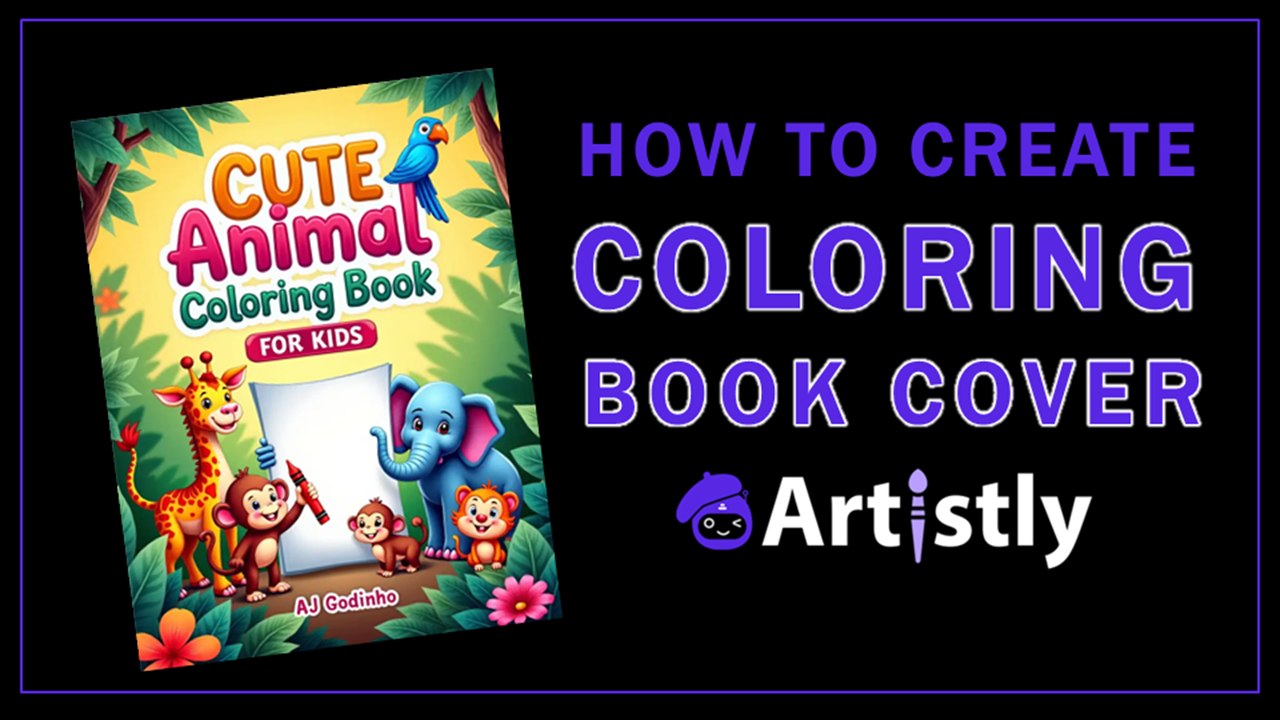
Before we go into the step-by-step process on how to upload your PDF files, let me share with you a couple of video tutorials on how to create coloring pages and the book cover with Artistly AI. The two PDF documents comprise of: (1) the coloring pages which make up the main book; (2) the coloring book front and back cover. The third video tutorial will walk you through the process of uploading your coloring book and cover to Amazon KDP.
Step-by-Step Process to Upload Coloring Book to Amazon KDP
Step 1: Prepare Your PDF Files
Before you log into KDP account, make sure you have the following ready:
(1) Interior PDF: Your coloring pages formatted to the correct trim size (e.g. 8.5″ x 11″). Use black and white line art and ensure all pages are high-resolution (300 DPI). You can check this Amazon web page for different trim (page) sizes that Amazon accepts. A couple of the popular ones are 8.5″ x 11″ and 8.5″ x 8.5″.
(2) Cover PDF: A full wraparound cover (front, back, and spine) designed using KDP’s Cover Calculator to match your page count and trim size.
(3) ISBN (International Standard Book Number): You can use a free ISBN provided by KDP or purchase your own.
(4) Title, Subtitle, Author Name: For example, Cute Animal Coloring Book: For Kids 4 to 8 years old.
(5) Book Description: A compelling summary that includes relevant keywords pertaining to your coloring book.
(6) Keywords: Up to 7 keyword phrases to help readers find your coloring book.
(7) Categories: Choose 2 categories that best fit your book (e.g. Juvenile Nonfiction > Activity Books).
As mentioned earlier, I have created a couple of Amazon KDP coloring book templates using PowerPoint and uploaded them to my Google Drive. You can click button below to download them.
There are two PowerPoint coloring book templates in this Google Drive folder: (1) the main template (called the interior or manuscript) which has all the coloring pages; (2) the coloring book cover template which includes the front and back cover.
Once you download them, make sure to read the “Important Read Me First” text document which has instructions on how to use the templates. I will be creating video tutorial on how to use these templates, but hope this helps for now.
Step 2: Log Into Amazon KDP
(1) Go to kdp.amazon.com and sign in with your Amazon account.
(2) If you don’t have an account, create one – it’s free!
Step 3: Create a New Paperback
(1) Click “+ Create” and select “Paperback”.
(2) Fill out the book details:
- Title & Subtitle: make sure to include relevant keywords
- Author Name: you can use your real name or pseudonym
- Description: provide a good description, you can ask ChatGPT
- Keywords: you can get relevant keywords from Amazon search
- Categories: this will depend on the theme of your coloring book
- Age & Grade Range: optional but helpful for children’s books
Step 4: Set Print Options
(1) Print Type: Black & White interior with white paper (ideal for coloring books).
(2) Trim Size: Common sizes include 8.5″ x 11″ or 8.5″ x 8.5″
(3) Bleed Settings: Choose “Bleed” if your illustrations go to the edge of the page.
(4) Cover Finish: Matte is popular for coloring books.
Step 5: Upload Your Files
(1) Manuscript: Upload your interior PDF (main coloring page PDF)
(2) Cover: Upload your full cover PDF (not a front-only image)
(3) Use the Previewer Tool to check for formatting issues. Fix any errors before proceeding.
Step 6: Set Pricing & Territories
(1) Choose Territories: “All Territories” is recommended
(2) Set your Royalty Rate: 60% is standard for paperbacks
(3) Enter your List Price: Consider production costs and competitor pricing
Step 7: Publish!
(1) Click “Publish Your Paperback Book”
(2) Your book will go through Amazon’s review process (usually 24–72 hours)
(3) Once approved, it will be live on Amazon!
Overview of Artistly Key Features
There is so much more you can do with Artistly AI other than creating coloring book pages and covers. It is packed with many different features. In fact, even this video below only covers some of the key features. I’m still in the process of creating more tutorials that showcase each feature. The other good thing about Artistly is that the development team continues to listen to user-feedback and accordingly implement improvements, new features, and bug fixes. There is also an active online community of users who share their creations as well as help others when they need it.